You have a photo of a printed page, but you need its words in a note or message. Retyping the page works, but optical character recognition, or OCR, can give you an editable starting point.
To extract text on Android with Vision AI, open its text scanner, photograph a page or select an existing image, then review the recognized text before copying or sharing it. The OCR processing runs on your device, so the image does not need to be uploaded for recognition.
This guide is written by KinetiqVision, the developer of Vision AI. The screenshots below show the app's scanning and recognized-text screens; they are interface examples, not an accuracy benchmark.
What you need before scanning
Install Vision AI while you have an internet connection and have a readable photo or printed page ready. Allow camera access if you want to photograph a document, or select an image from your phone for an existing photo.
Start with clear printed text. Small lettering, motion blur, reflections, and handwriting can make recognition less reliable. OCR output still needs a quick check against the original.
Download Vision AI on Google Play
Step 1: Open the text scanner
Open Vision AI and choose its text-scanning tool. For one image, use Single mode. The scanning screen also has a Bulk option for working with multiple images, but a single page is the easiest place to start.
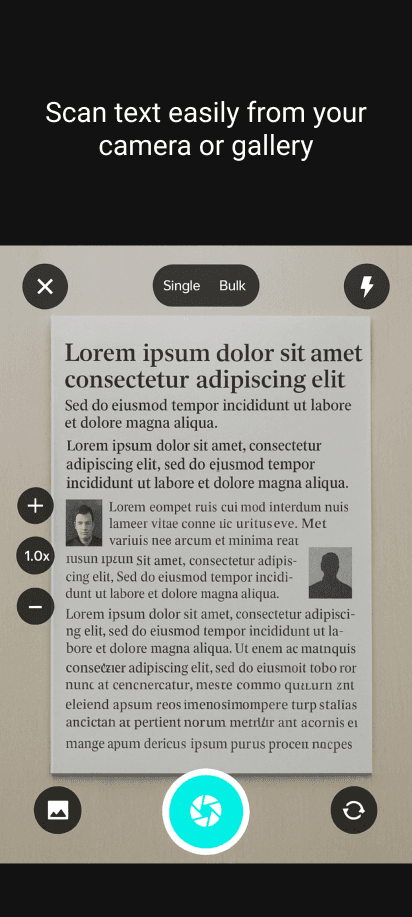
Capture a page with the camera or use the gallery button to select an image.
Step 2: Capture a page or select a photo
For a printed page, place it on a flat surface with even lighting. Hold your phone roughly parallel to the paper, fit the text into the frame, and use the large capture button at the bottom of the screen. Move closer if the letters look tiny, while keeping the text you need inside the frame.
For an image already on your phone, use the gallery icon at the bottom left to select it. A screenshot, saved photograph, or picture of a receipt can be a useful starting point if its lettering is readable.
Try to include only the relevant text. A page surrounded by unrelated labels or another document gives you more material to sort through afterward.
Step 3: Review and edit the recognized text
Once recognition finishes, review the result on the Recognized Text screen. Use Edit to correct mistakes before sending the text elsewhere.
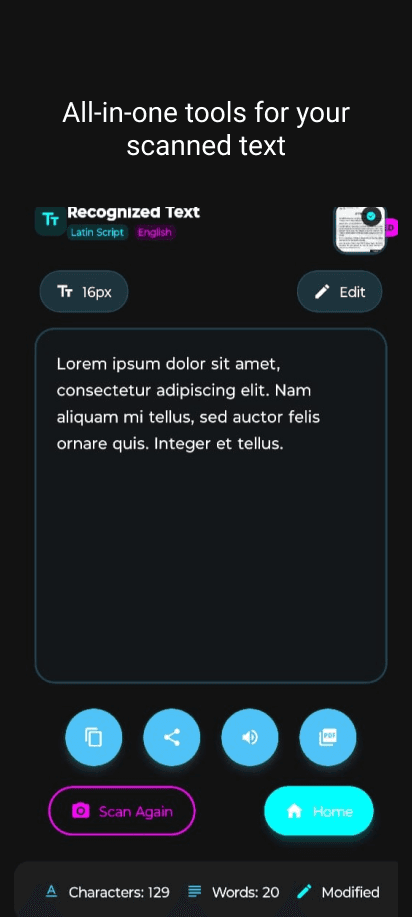
Review the recognized words, make corrections, then choose an output action.
Pay particular attention to names, dates, decimal points, and reference numbers. Similar characters such as O and 0, I and 1, or S and 5 can be confused. A sentence can look plausible even when one character is wrong.
OCR also may change line breaks or the reading order of columns. If you scan a two-column page, check that the text follows the intended sequence rather than alternating between columns.
Step 4: Copy or share the result
Use the copy icon to put the recognized text on your clipboard, then paste it into your notes, document editor, or message. Use the share icon if you want to pass it directly to another app.
The result screen also shows read-aloud and PDF actions. Choose the output that suits your task: copying is useful for editing a paragraph, while a document output may suit material you want to keep together.
Keep the original image until you have checked the result. It is much easier to fix a doubtful word when you can still compare it with the source.
How to improve OCR results
If a scan contains many errors, improve the source image before spending time correcting every word.
| Problem | What to try |
|---|---|
| Blurry or doubled letters | Hold the phone steady, let it focus, and retake the photo. |
| Glare across a receipt | Change the camera or light angle so the reflection moves away from the text. |
| Small text is missing | Move closer or capture the page in smaller sections. |
| Text is slanted or distorted | Flatten the page and hold the camera parallel to it. |
| Columns appear in the wrong order | Scan each column separately, then combine the checked text. |
| Handwriting is misread | Try a clearer image; be prepared to transcribe difficult words manually. |
For example, if you only need a receipt's purchase details, photograph that section clearly instead of including the whole counter and surrounding objects. After scanning, compare each item and amount with the receipt. This is a suggested workflow, not a measured test result.
Text extraction and document scanning serve different purposes
Use text scanning when you want to work with the words: edit them, paste them into notes, or share them as text.
Use document scanning when you want a page-like record, such as a multi-page PDF. Saving a page as a PDF does not by itself tell you whether its words are selectable or searchable; check the exported file if that matters for your workflow.
Vision AI includes both tools. You can explore them on the Vision AI app page.
What offline OCR means for your photos
Vision AI performs text recognition locally on your Android device. You can use that workflow without uploading the source image to an OCR server.
What happens afterward depends on your choices. If you share the result to an email service or paste it into a cloud-synced notes app, that destination may transmit or sync the text. Local recognition and your destination app's storage are separate parts of the workflow.
For more context, read on-device AI versus cloud AI or the Vision AI privacy policy.
Frequently asked questions
Can I extract text from an existing photo?
Yes. Use the gallery button on the text-scanning screen to select an image already on your phone, then review the recognized text.
Does OCR translate the text?
OCR recognizes written characters. Translation changes their language. Extracting text does not automatically mean it has been translated.
Will the result keep the original formatting?
Do not assume it will reproduce a page's layout exactly. Check paragraphs, lists, tables, and column order before reusing the output. Keep the original image if the visual arrangement matters.
Can I use it for handwriting?
Handwriting can be harder to recognize than clear printed text. Results depend on the writing and image quality; check the output carefully and manually transcribe anything the scanner cannot read reliably.
Why do I still need to proofread?
OCR estimates the characters visible in an image. It can miss punctuation, confuse letters with numbers, or read text in the wrong order. Treat the result as a draft, especially when names or amounts need to be exact.
Ready to try it? Start with one clear printed paragraph, scan it, and compare the recognized text with the page before copying it.
Get Vision AI for Android
For another practical photo workflow, see how to remove backgrounds from photos on Android.